Setting up a SengGrid integration
In this section we will describe how to configure a SendGrid Integration in your RapidPlatform site.
Navigate to Integrations
To create a new integration we must first navigate to the Integrations page.
first, navigate to the Designer expereince by clicking the Designer button in the bottom left of your RapisPlatform site:

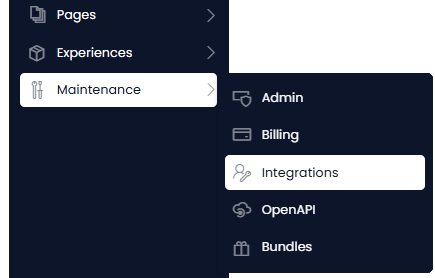
Then, on the side menu, go to Maintenance > Integrations:
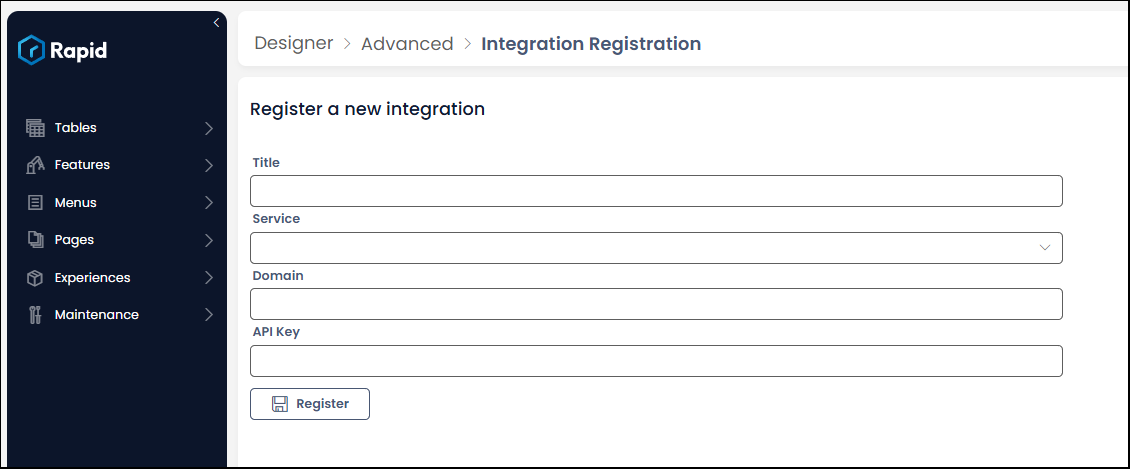
You will be presented with the 'Integration Registration' page, like so:
Configuring your integration
Configuring a new SendGrid integration simply requires you to fill in a few fields and Register the new Integration.
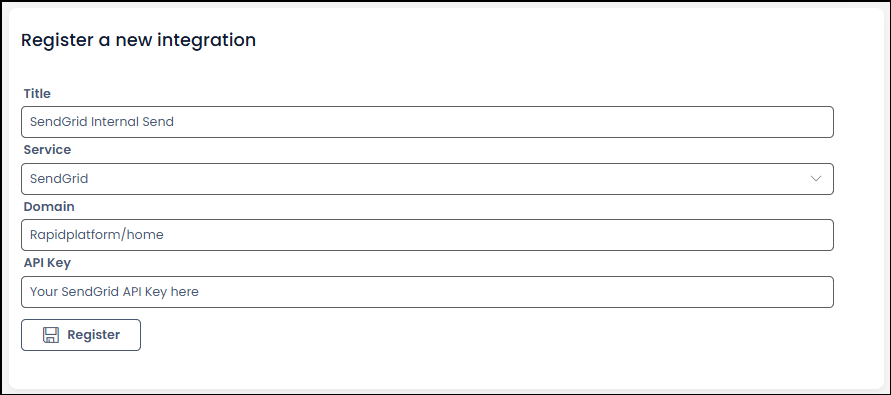
Title: This is the title of your integration, it should be human readable as this will be the title >presented whenever you are selecting an integration to use.
Service: A dropdown menu of availible Integrations
Domain: This is yourTennant/yourSite
API key: the API key of the SendGrid account to be used for this integration, you can find this key in the >SendGrid Account Portal.
Once these fields are filled in, you can press 'Register' to register your integration.
After you have registered you will be presented with a callback URL, if you intend to use your SendGrid integration for automations triggered via recieve tasks, you will want to cope and store this Callback URL somewhere safe.
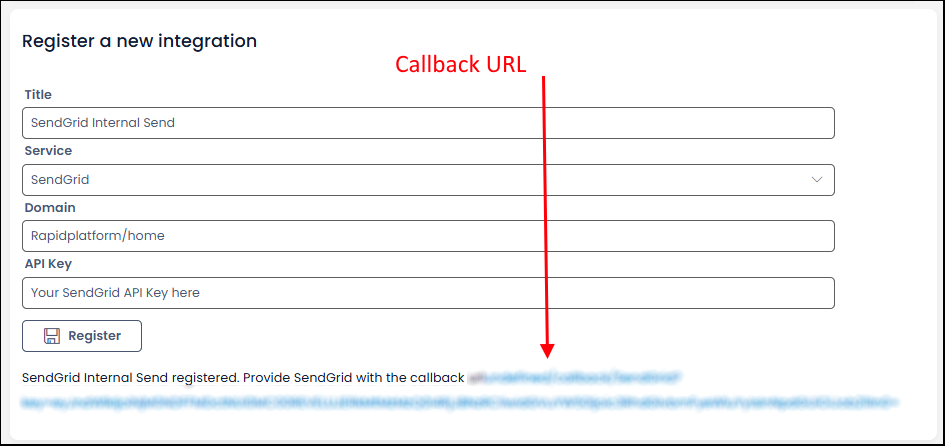
Congratulations! you have successfully created a new SendGrid Integration.